How to use Wi-Fi
Register
Connect to wifi from your device and then click the browser, then you'll get to the login page for registration.
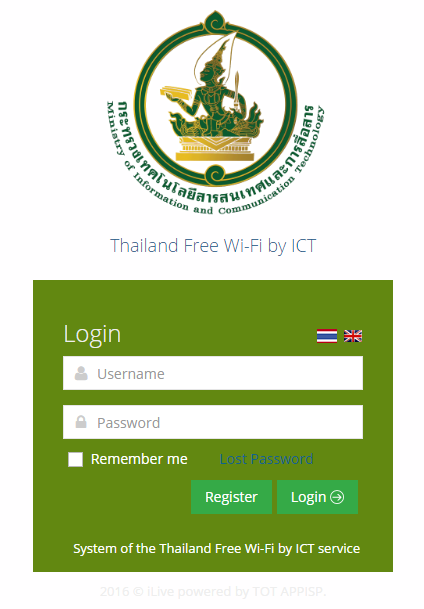
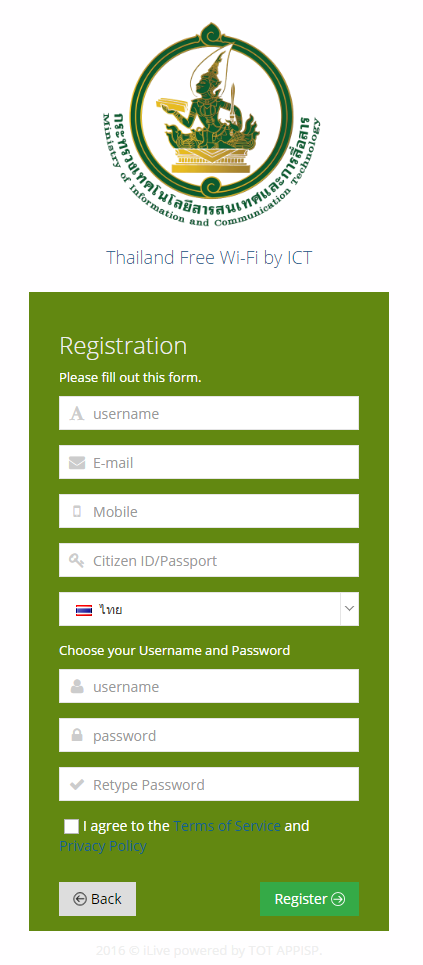
Click the 'register' button, fill out the form and then click 'register.'
- Usernames must be greater than four characters and can be a mixture of letters and numbers.
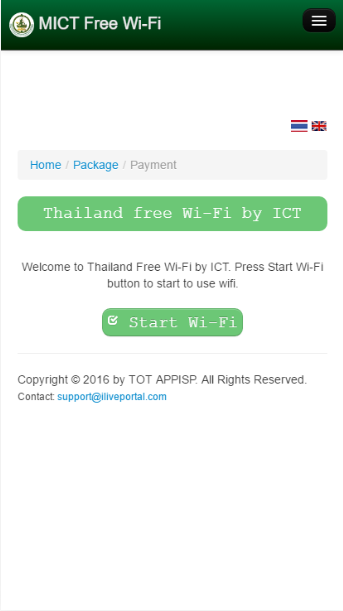
When you complete the registration process, you can start surfing the internet by clicking the 'start wifi' button.
Edit Profile
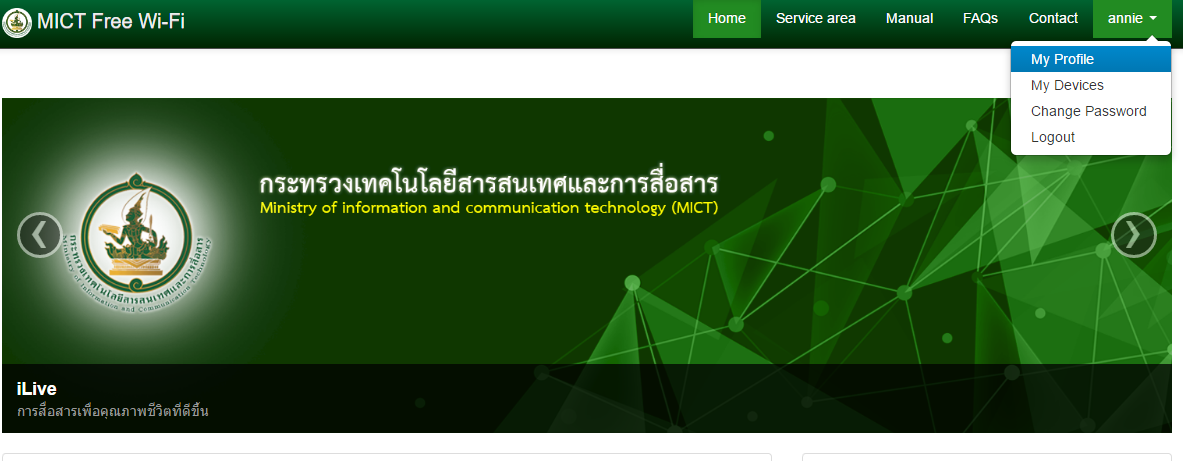
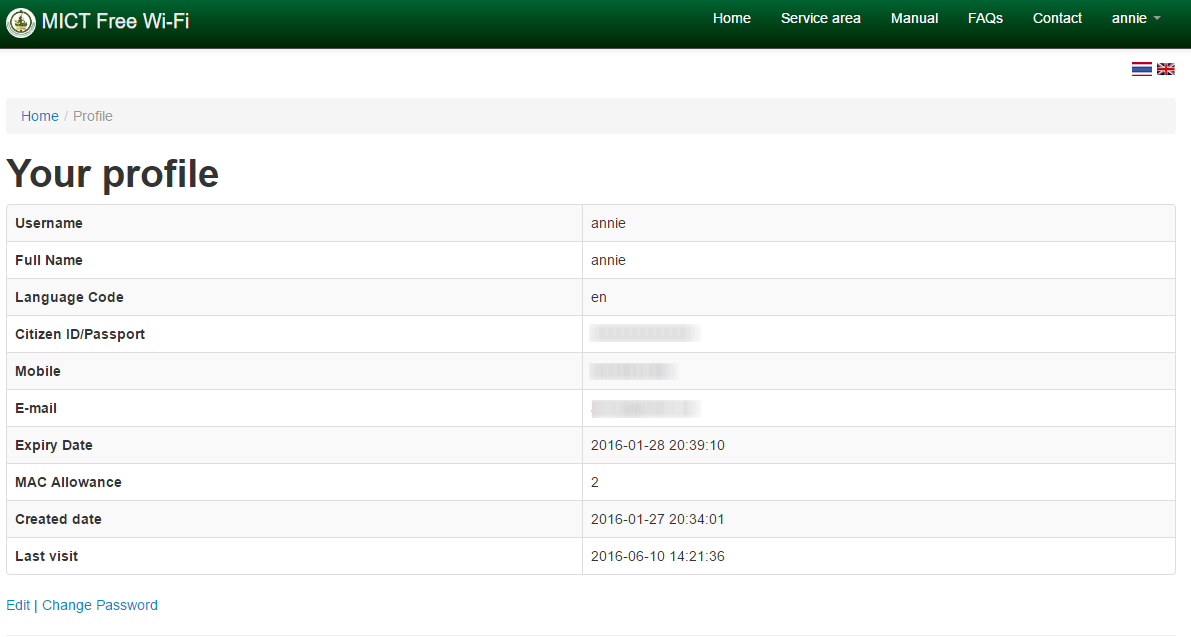
On the top-right menu tab, choose 'Your Profile' menu.
The system will show your profile and you can edit your profile on this page by going on the "edit" button.
Change Password
You can change your password by 2 methods
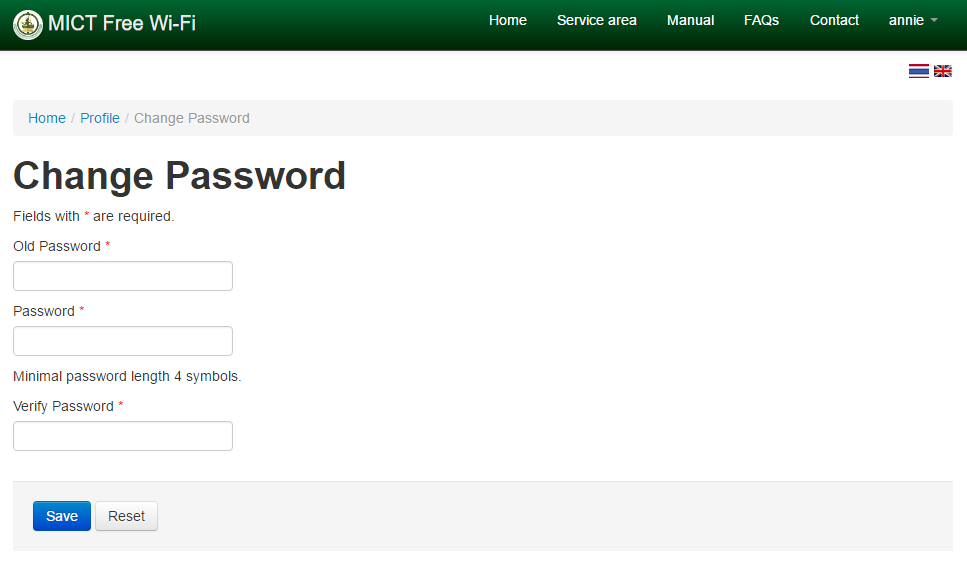
1. On the top-right menu tab, choose the "Your Profile" menu, then the system will show your profile and you can change your password by clicking the "Change Password" button.
2. On the top-right menu tab, choose the "Change Password" menu.
- Whichever method you opt for, you change your password by typing your old password before typing your new password.
- Click the "save" button to save your new password.
- Then your password changing process is complete.
Check Devices
1. Adding devices to the system
- Take the devices that you need to add into the wifi connection system.
- Login to the system then in the top-right menu tab in the "My Profile" menu, choose the "Your Device" menu.
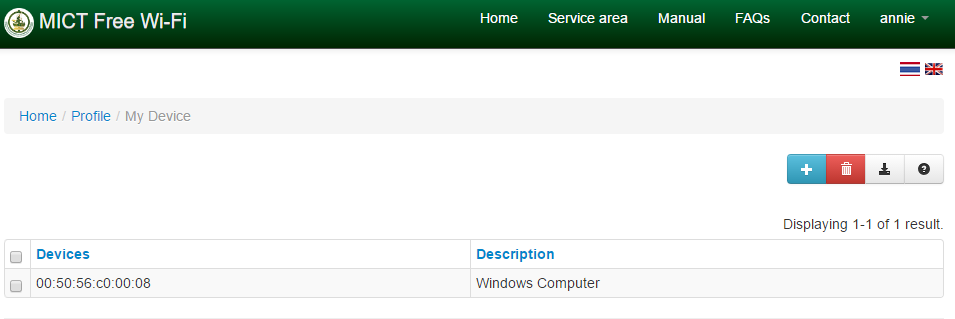
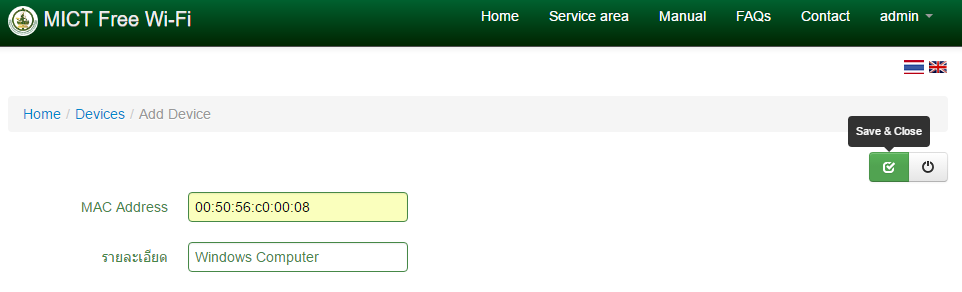
- Click on the "+" symbol for adding devices, then the system will get your MAC address automatically. Then new devices that are registered will be able to surf the internet.
2. Deleting devices in the system
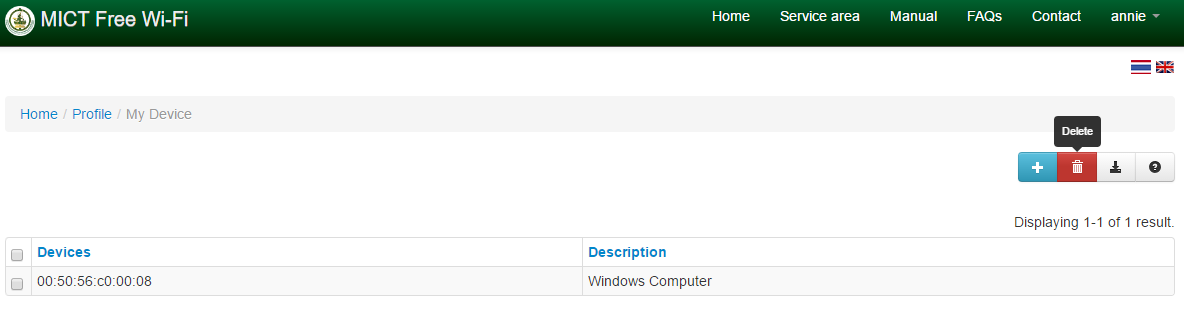
- Login to the system, then in the top-right menu tab, in the "My Profile" menu, choose the "Your Device" menu.
- Choose the device that you need to delete, then click the "recycle" button. You will then get a pop-up to confirm the deletion of your chosen devices, click "OK" for confirmation.
Lost Password
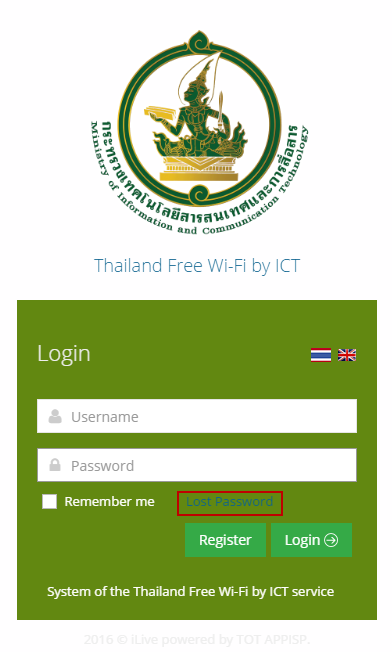
On log in page click "lost password"
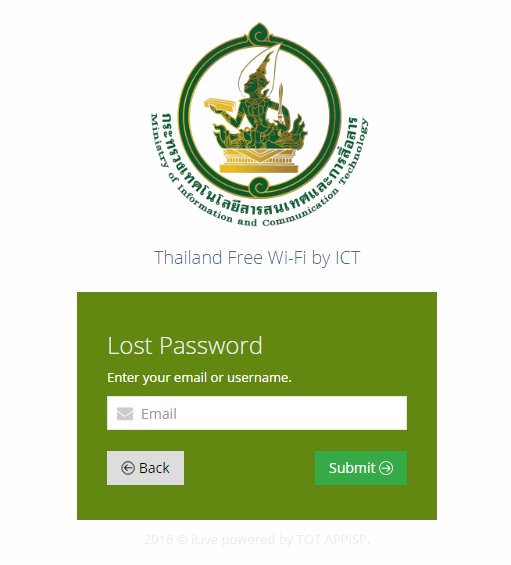
Fill out your email or your username and then click the "submit" button for resetting your password, then you will get a new password in email.
note
Your email that the system will email, is the email that you registered with in the system.
 MDES Wi-Fi